
Uploads and media
LimitedAdd a media library to a Ridu project, upload files through the admin or SDK, and reference them from content.
Uploads in Ridu are documents with files attached. The document lives in your selected database and contains fields such as alt text and a caption. The file bytes live in a separate object-storage backend. Ridu joins the two into one media-library experience in the admin and generated SDK.
This guide adds a private media library to an existing starter project, stores files under
.ridu/uploads during development, and adds a heroImage picker to posts. When you finish, an
author can upload an image once and reuse it from any post.
Before you start
You need a generated Ridu project and a user who can sign in to its admin. The examples use the
starter project’s existing authenticatedOnly access function. If your project started from the
blank template, define an auth collection and equivalent access rule first.
The local backend below is appropriate for development and one application process on a durable disk. The production storage section shows the S3-compatible replacement.
1. Define the media library
Create content/media.go:
package content

import (
  "github.com/riducms/ridu"
  "github.com/riducms/ridu/field"
)

var Media = ridu.Collection{
  Slug:   "media",
  Labels: ridu.CollectionLabels{Singular: "Asset", Plural: "Media"},
  Admin: ridu.CollectionAdmin{
    Group:      "Content",
    UseAsTitle: "alt",
  },
  Upload: true,
  UploadConfig: ridu.UploadConfig{
    MaxFileSize: 10 << 20, // 10 × 2²⁰ = 10,485,760 bytes (10 MiB)
    MimeTypes:   []string{"image/jpeg", "image/png"},
    Private:     true,
    ImageSizes: []ridu.ImageSize{
      {Name: "card", Width: 1200, Height: 630, Fit: "cover"},
      {Name: "thumb", Width: 320, Height: 320, Fit: "cover"},
    },
  },
  Fields: field.Fields{
    field.Text("alt").
      Label("Alt text").
      Required().
      Admin(field.Admin{
        Description: "Describe the image for people who cannot see it.",
      }),
    field.Textarea("caption").Label("Caption"),
  },
  Access: ridu.CollectionAccess{
    Create: authenticatedOnly,
    Read:   authenticatedOnly,
    Update: authenticatedOnly,
    Delete: authenticatedOnly,
  },
}
The media collection now accepts images up to 10 MiB. JPEG and PNG originals are retained,
and Ridu generates card and thumb JPEG variants. Every download is checked against the
collection’s read access; Private: true also requires a signed-in caller, so leave it off when
read access lets visitors download the files.
Each image size’s Fit decides its shape:
Fit |
Result |
|---|---|
"cover" (default) |
Exactly Width × Height, cropped around the image’s focal point. |
"inside" |
The complete image at its own shape, scaled down to fit within Width × Height and never enlarged. The size’s stored width and height are the picture’s, which can be smaller. |
"contain" |
The complete image scaled to fit within Width × Height, centred on a canvas of exactly that size. The rest of the canvas is transparent in a PNG and black in a JPEG. |
Use "inside" to show a whole photo, for example in a gallery or attachment. Sizes made from a JPEG
are JPEG, so a "contain" canvas is padded in black. Sizes made from a lossy WebP without
transparency, the usual way to save a photo as WebP, are also JPEG, which is much smaller than PNG
for a photo, except "contain" sizes, whose padding needs PNG’s transparency; Go can’t write WebP.
Sizes made from a lossless or transparent WebP, or any other image, are PNG.
Ridu adds the following server-owned fields to every upload document:
| Field | Meaning |
|---|---|
filename, mimeType |
Sanitized filename and MIME type detected from the file bytes |
filesize, width, height |
Byte size and dimensions of the current primary file |
url |
Access-checked delivery path for the current primary file |
sizes.card, sizes.thumb |
URL, dimensions, MIME type, and byte size for each image variant |
focalX, focalY |
Image focal point as percentages from 0 through 100 |
Clients cannot forge these values with an ordinary JSON create. They submit the file and authored
fields such as alt; Ridu derives the file metadata.
2. Register the collection
Add a stable storage namespace and Media to content/config.go. The surrounding starter config
is included so the insertion points are clear:
package content

import "github.com/riducms/ridu"

func Config() ridu.Config {
  return ridu.Config{
    Name:             "Acme Editorial",
    Admin:            ridu.AdminConfig{User: "users"},
    StorageNamespace: "acme-editorial",
    Plugins:          installedPlugins(),
    Collections: []ridu.Collection{
      Users,
      Posts,
      Media,
    },
  }
}
StorageNamespace owns one application’s objects inside the backend. Use 3–64 lowercase letters,
digits, underscores, or hyphens. Keep it unchanged if the display name or collection slug changes,
and do not share it with another application using the same storage location.
3. Connect local storage
Keep the storage setup in the generated cmd/server/main.go. First add the local-storage and
storage-contract imports alongside the existing SQLite imports:
package main

import (
  "context"
  "log"
  "net/url"
  "os"
  "path/filepath"
  "strconv"
  "strings"
  "time"

  "example.com/acme/internal/adminassets"
  "github.com/riducms/ridu"
  "github.com/riducms/ridu/adapters/sqlite"
  localstorage "github.com/riducms/ridu/adapters/storage/local"
  "github.com/riducms/ridu/storage"
  "github.com/riducms/ridu/store"
)
Then create the backend lazily inside runtimeOptions. This example uses SQLite; keep your
PostgreSQL or MongoDB WithStore block unchanged and add the same highlighted
WithUploadStorage block after it.
func runtimeOptions(
  applicationConfig ridu.Config,
) []ridu.ExecuteOption {
  return []ridu.ExecuteOption{
    ridu.WithStore(func(ctx context.Context) (store.Store, error) {
      return sqlite.Open(ctx, sqliteDatabasePath())
    }),
    ridu.WithUploadStorage(func(
      _ context.Context,
    ) (storage.Backend, error) {
      root := os.Getenv("RIDU_UPLOAD_PATH")
      if root == "" {
        root = ".ridu/uploads"
      }
      return localstorage.New(root)
    }),
    ridu.WithAddress(serverAddress()),
    ridu.WithHandlerOptions(ridu.HandlerOptions{
      AdminAssets: adminassets.FS(),
      // Keep the remaining generated handler options here.
    }),
    // Keep the generated WithServerOptions block here.
  }
}
The factory runs only when the application server starts. Commands that resolve config—such as
generation and offline migration creation—do not need the upload directory or cloud credentials.
For local development the default .ridu/uploads directory is already disposable project state.
Set an absolute RIDU_UPLOAD_PATH when the files must survive a process working-directory change.
4. Add a media picker to posts
Add field.Upload to the starter Posts collection. The target is the media collection slug,
not a filesystem path or storage bucket:
package content

import (
  "github.com/riducms/ridu"
  "github.com/riducms/ridu/field"
  "github.com/riducms/ridu/plugins/richtext"
)

var Posts = ridu.Collection{
  Slug: "posts",
  Access: ridu.CollectionAccess{
    Create: authenticatedOnly,
    Read:   authenticatedOnly,
    Update: authenticatedOnly,
    Delete: authenticatedOnly,
  },
  Fields: field.Fields{
    field.Text("title").Required(),
    field.Select("status", "draft", "published").Default("draft"),
    field.Upload("heroImage", "media"),
    field.Relationship("author", "users"),
    richtext.Field("content"),
  },
}
This stores one media document ID in heroImage. Add .Required() when every post must have
an image, or field.Uploads when the field should be a gallery. Read the focused
Upload field guide for filtering and delete behavior.
5. Run in development
Run the project-local development loop from the project root. ridu dev resolves the updated Go
config, regenerates contracts, applies the safe additive development schema change, and starts the
API and admin.
ridu devThe server should pass upload-storage readiness and print the admin URL. If it reports
upload storage is unavailable, the WithUploadStorage option is missing or the configured
directory cannot be created.
6. Upload and reuse an image in the admin
Open /admin, sign in, and choose Media under Content. Select Create new, choose an image,
enter its alt text, and save. You can also drop a file into the empty file area or paste a public
image URL. Selecting a local file and pasting a URL both prepare a draft; Save creates the media
document. Ridu uploads the original, detects its metadata, generates both image sizes, and creates
the media document.
Now open a post. The new Hero image field opens a media picker containing the document you just created. Selecting it stores that media document’s ID on the post; it does not copy the file.
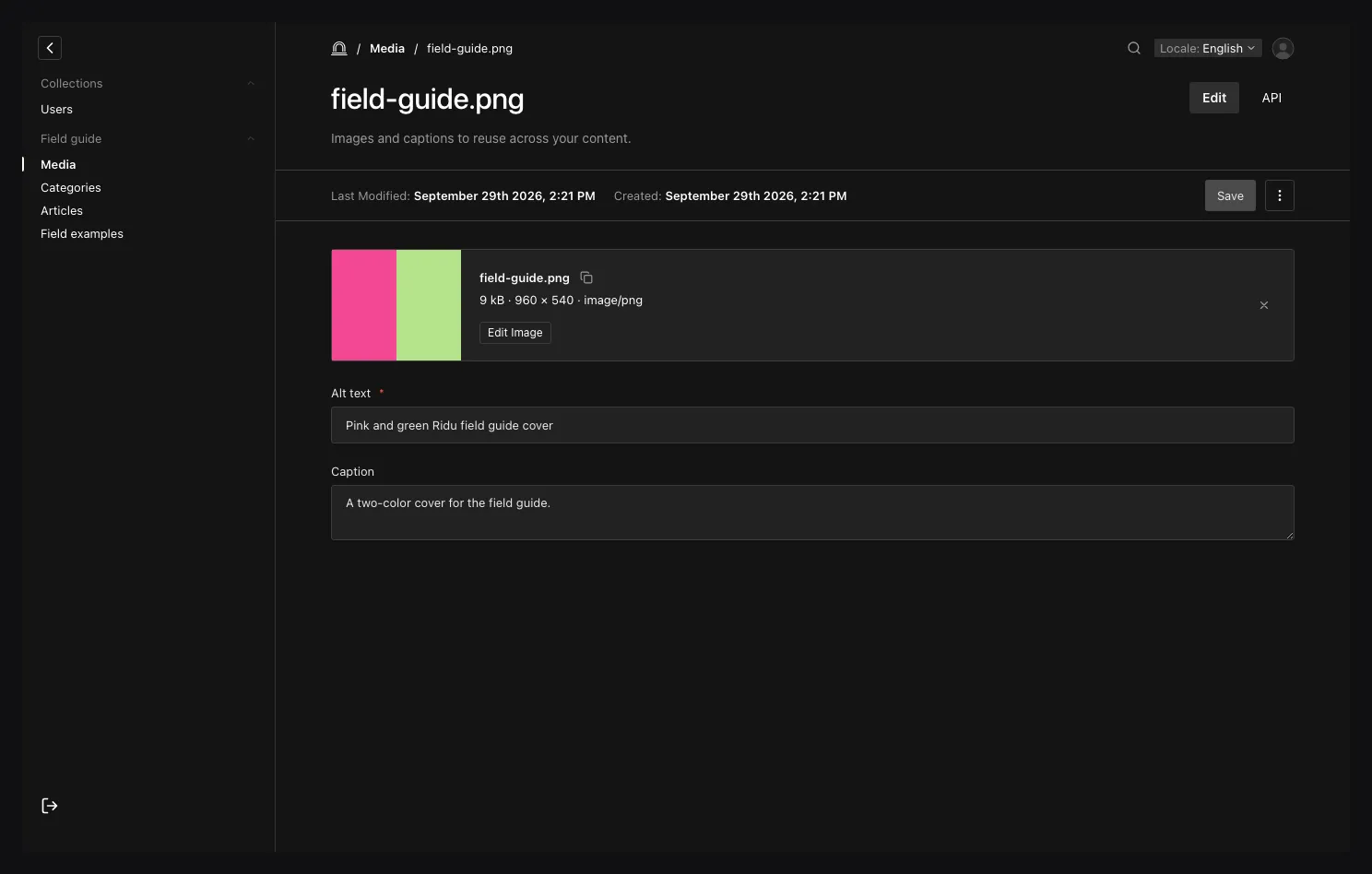
The preview, generated sizes, and authored fields belong to one media document. The private source, current primary file, and variant bytes remain in the configured storage backend.
Add several assets
Choose Bulk upload from an upload collection’s list. Select or drop several files, then use the
file list and Previous/Next controls to review each asset’s metadata and image settings.
Ridu proposes alt text from a filename when the collection has an alt field; check the wording
before saving. Edit all applies selected, writable scalar fields such as a shared caption to
the unsaved files in the queue. It does not overwrite every field or edit assets already saved.
Choose Save to create the queued assets. Each file is its own create operation: one validation failure does not roll back files that completed. Correct a failed file and choose Retry for it. If the outcome is marked unknown after a network or server failure, inspect the collection before trying again so you do not create a duplicate. The workspace also offers a separate public-URL import. Leaving with unfinished files asks whether to discard the queue.
Upload from application code
The generated TypeScript module knows that media accepts uploads and which authored fields it
expects. This complete helper creates the application-bound client, uploads a browser File, and
returns a URL that works whether the SDK returned a relative or absolute delivery path:
import { createClient } from '../../generated/ridu.generated';

const baseURL = 'http://localhost:8080';
const ridu = createClient({ baseURL });

export async function uploadHero(file: File, alt: string) {
  const asset = await ridu.upload('media', file, {
    data: {
      alt,
      caption: 'Uploaded from the website'
    }
  });

  return {
    id: asset.id,
    primaryURL: new URL(asset.url, baseURL).toString(),
    cardURL: new URL(asset.sizes.card.url, baseURL).toString(),
    width: asset.width,
    height: asset.height
  };
}
Pass the resulting media ID when creating or updating a post:
import { uploadHero } from '../../lib/media';
import { createClient } from '../../../generated/ridu.generated';

const ridu = createClient({ baseURL: 'http://localhost:8080' });

export async function createPost(file: File) {
  const hero = await uploadHero(
    file,
    'The Ridu team outside the studio'
  );

  return ridu.create('posts', {
    title: 'Studio notes',
    status: 'draft',
    heroImage: hero.id
  });
}
In a browser, the SDK sends the current session cookie by default. For another browser origin,
configure CORS and credentialed cookies. Server-side callers can supply an API-key
Authorization header when their application uses service credentials.
Use the multipart REST endpoint directly
The SDK call above sends multipart/form-data to POST /api/collections/media. A non-TypeScript
client can send the same request. This example assumes cookies.txt contains an authenticated Ridu
session:
curl --fail-with-body \
  --cookie cookies.txt \
  --form 'file=@./hero.jpg' \
  --form 'data={"alt":"The Ridu team outside the studio","caption":"Homepage hero"}' \
  http://localhost:8080/api/collections/media
The file part is required. data is an optional JSON object containing only application-authored
fields. Do not set the multipart Content-Type header manually; the client must add its boundary.
Import a public remote image
Use uploadFromURL when Ridu should fetch a public HTTP(S) image and turn it into a normal media
document:
import { createClient } from '../../generated/ridu.generated';

const ridu = createClient({ baseURL: 'https://cms.example.com' });

export async function importLaunchGraphic() {
  return ridu.uploadFromURL(
    'media',
    'https://images.example.com/launch.png',
    {
      data: {
        alt: 'Launch graphic',
        caption: 'Imported from the campaign image service'
      }
    }
  );
}
The server blocks non-HTTP schemes, private and loopback destinations, unsafe redirects, oversized responses, and content that fails the collection’s MIME rules. This is a guarded import operation, not a general server-side proxy. Application-specific host allowlists, moderation, malware scanning, and quarantine need a trusted pre-ingestion service or plugin.
Crop an image and regenerate sizes
Image uploads start at { focalX: 50, focalY: 50 }, the center of the original. In the media
editor, choose Edit Image to move or resize a crop and adjust the focal point. Reset clears
the crop or recenters the focal point in its respective section. Cancel discards changes made in
that drawer; Apply Changes stages them on the document. Choose the document’s Save action to
commit the edit and regenerate its named sizes. Preview Sizes shows the saved primary file and
generated variants.
Ridu retains an uncropped, private source image. Reopening Edit Image starts from that source, so resetting and saving a crop can restore the full image without repeated cropping of the previous rendition. This editing flow is available for JPEG and PNG files. Other allowed file types still support upload and delivery.
Application code can submit an image edit with other authored metadata in one revision-checked upload update:
import { createClient } from '../../generated/ridu.generated';

const ridu = createClient({ baseURL: 'https://cms.example.com' });

export async function keepSubjectInFrame(
  assetID: string,
  revision: number
) {
  return ridu.updateUpload(
    'media',
    assetID,
    {
      data: { caption: 'Ready for the homepage' },
      image: {
        focalX: 40,
        focalY: 35,
        cropX: 0,
        cropY: 0,
        cropWidth: 0,
        cropHeight: 0
      }
    },
    { revision }
  );
}
Coordinates are percentages from 0 through 100, not decimal fractions or source pixels. Pass
the current _revision so an older editor cannot overwrite a newer crop. A zero crop width and
height clear the crop. For a selected crop, cropX, cropY, cropWidth, and cropHeight use the
same percentage coordinate system. The admin’s width and height controls display source pixels.
Limit large images
Phone cameras save photos of 12 megapixels or more. To store a smaller original, set
MaxImageDimension:
UploadConfig: ridu.UploadConfig{
  MaxFileSize:       20 << 20,
  MimeTypes:         []string{"image/jpeg", "image/png"},
  MaxImageDimension: 2400,
  ImageSizes: []ridu.ImageSize{
    {Name: "card", Width: 1200, Height: 630, Fit: "cover"},
    {Name: "thumb", Width: 320, Height: 320, Fit: "cover"},
  },
},
A JPEG or PNG original wider or taller than 2,400 pixels is scaled down to fit inside 2,400 × 2,400
before Ridu stores it, keeping its shape. A smaller one is never enlarged. The scaled image replaces
the original everywhere: the stored file with its width, height, and filesize, the private
source that crops start from, and the image sizes made from it. Ridu stores it upright and without
the camera’s EXIF metadata, such as its location. GIFs and other files keep their uploaded bytes.
MaxImageDimension must be at least the width and height of every image size.
Changing MaxImageDimension doesn’t rewrite stored files. When an author crops an older image, the
new primary file is scaled to fit, and its private source stays as it was.
Ridu processes an image within these limits:
| Limit | Value |
|---|---|
| Image dimensions | At most 20,000 pixels wide or high, and 40 megapixels |
| Memory for image processing | 512 MiB at once, or half of GOMEMLIMIT when you set it |
Before decoding an image, Ridu reserves the memory its processing needs from that budget, and an
upload waits while other images use it. With the configuration above, a 12-megapixel phone JPEG
reserves about 170 MiB, and a 24-megapixel one about 250 MiB, including scaling them to 2,400 pixels.
The full picture is decoded before it can be scaled, so MaxImageDimension doesn’t raise the
largest image Ridu accepts.
Set GOMEMLIMIT a little below the service’s memory, for example GOMEMLIMIT=900MiB for 1 GB. An
image that needs more than the whole budget fails with a validation error that tells the person
uploading the most the server takes:
image is 5712×4284 (24.5 megapixels), more than this server can process at once; upload an image of at most about 18.3 megapixelsDeliver files safely
asset.url and each asset.sizes[name].url point at Ridu’s access-checked delivery endpoint. Build
an absolute URL with new URL(asset.url, baseURL) when a frontend and CMS use different origins.
Because the example collection sets Private: true, the request must carry an authenticated actor
who can read the media document. Ridu also reapplies field redaction before delivery. Framework
delivery sends Cache-Control: private, no-store, including for collections where Private is
false, because collection read access may still depend on the actor or document.
If a public CDN is required, create an application-owned publication or copy boundary instead of
exposing Ridu’s internal objectKey. A backend that implements storage.URLSigner can issue a
short-lived direct download only after the application has made the relevant access decision.
Use S3-compatible storage in production
For more than one application replica, replace the local backend with an S3-compatible backend so
every replica sees the same objects. The collection and field.Upload definitions do not change.
In cmd/server/main.go, replace the localstorage import with
s3storage "github.com/riducms/ridu/adapters/storage/s3", then replace the local
WithUploadStorage option:
ridu.WithStore(func(ctx context.Context) (store.Store, error) {
  return postgres.Open(ctx, os.Getenv("DATABASE_URL"))
}),
ridu.WithUploadStorage(func(
  _ context.Context,
) (storage.Backend, error) {
  return s3storage.New(s3storage.Config{
    Endpoint:       os.Getenv("S3_ENDPOINT"),
    Region:         os.Getenv("S3_REGION"),
    Bucket:         os.Getenv("S3_BUCKET"),
    AccessKey:      os.Getenv("S3_ACCESS_KEY"),
    SecretKey:      os.Getenv("S3_SECRET_KEY"),
    // 256 × 2²⁰ = 268,435,456 bytes (256 MiB)
    MaxSpoolBytes:  256 << 20,
    SpoolDirectory: "/var/tmp/ridu-spool",
  })
}),
ridu.WithAddress(serverAddress()),
Set S3_ENDPOINT to the provider’s endpoint without the bucket, such as https://t3.storageapi.dev
for a Railway bucket. Ridu addresses the bucket as a subdomain of that endpoint, as AWS, Railway
(Tigris) and Cloudflare R2 expect. For MinIO, or another provider that needs
<endpoint>/<bucket> paths, add PathStyle: true.
Use HTTPS for production endpoints. Size the private spool directory for concurrent uploads and back it with ephemeral disk; S3 signing may need to spool a non-seekable request before upload. See Object storage for addressing, timeouts, local emulators, signed URLs, and the backend contract.
Prepare the schema change for deployment
ridu dev applies additive development synchronization only. Before deploying the media
collection, create a migration, review its plan, verify the complete history, and run the project
check. Do this after the local workflow above succeeds—not before ridu dev.
ridu migrate create --name add-media
ridu migrate verify
ridu check
Commit the migration and changed files under generated/. Apply the reviewed history with
migrate up against the deployment database as an operator step, then require migrate status and
application readiness to pass. The Migrations guide covers adapter-specific
connection and safety options.
Delete, reconcile, and back up media
Soft-deleting a media document retains its objects so it can be restored. Permanent deletion removes objects only after the database transaction commits and only when no live, trashed, or versioned document still owns them.
Database metadata and object storage cannot share one transaction. App.ReconcileUploads reports
old unreferenced objects without deleting them; after reviewing that report, App.CleanupUploads
performs the destructive pass. Use a grace period of at least five minutes and longer than the
slowest upload or import in your deployment. Storage listings must provide trustworthy non-zero
modification times or cleanup fails closed.
Back up the database and its upload namespace to a matched recovery point. Restoring only the database can leave missing files; restoring only object storage can leave unreferenced objects. After a restore, check representative media URLs and checksums before running report-only reconciliation.
Current limitations
Ridu does not yet provide resumable transfers, direct browser-to-storage sessions, quarantine, malware scanning, or a general raw-object endpoint. Each document can own at most 65 original and derived object keys.
Troubleshooting
| Symptom | What to check |
|---|---|
upload storage is unavailable |
Register ridu.WithUploadStorage(...) and make sure the directory, bucket, and credentials are available to the server process. |
unknown upload collection "media" |
Add Media to Config.Collections, keep Upload: true, and save while ridu dev is running; prepare the immutable migration before deployment. |
| MIME or size validation fails | Compare the actual file bytes with MimeTypes and MaxFileSize; Ridu sniffs content rather than trusting the browser’s MIME header. |
| The media picker is empty | Upload a media document first, confirm the Upload field targets media, and check that the signed-in actor can read that document. |
| A browser upload is unauthorized | Sign in first; for a separate frontend origin, allow the exact CORS origin and credentials. |
A private <img> does not load |
Use the Ridu delivery URL, preserve credentials where appropriate, and check the collection’s read rule. Do not use objectKey as a URL. |
more than this server can process at once |
Give the service more memory and set GOMEMLIMIT to match, or shrink photos in the browser before uploading them. |
| An image variant is missing | Confirm the original is a supported image, the size name exists in ImageSizes, and the requested variant is read from asset.sizes.<name>.url. |
| A create timed out or returned an uncertain 5xx | Refresh or query the media collection before retrying so a committed upload is not duplicated. |
Continue with the Upload field guide, Object storage,
TypeScript SDK, or the storage API reference.