
Fields
Define document fields, choose their inputs, and add validation, permissions, and custom behavior.
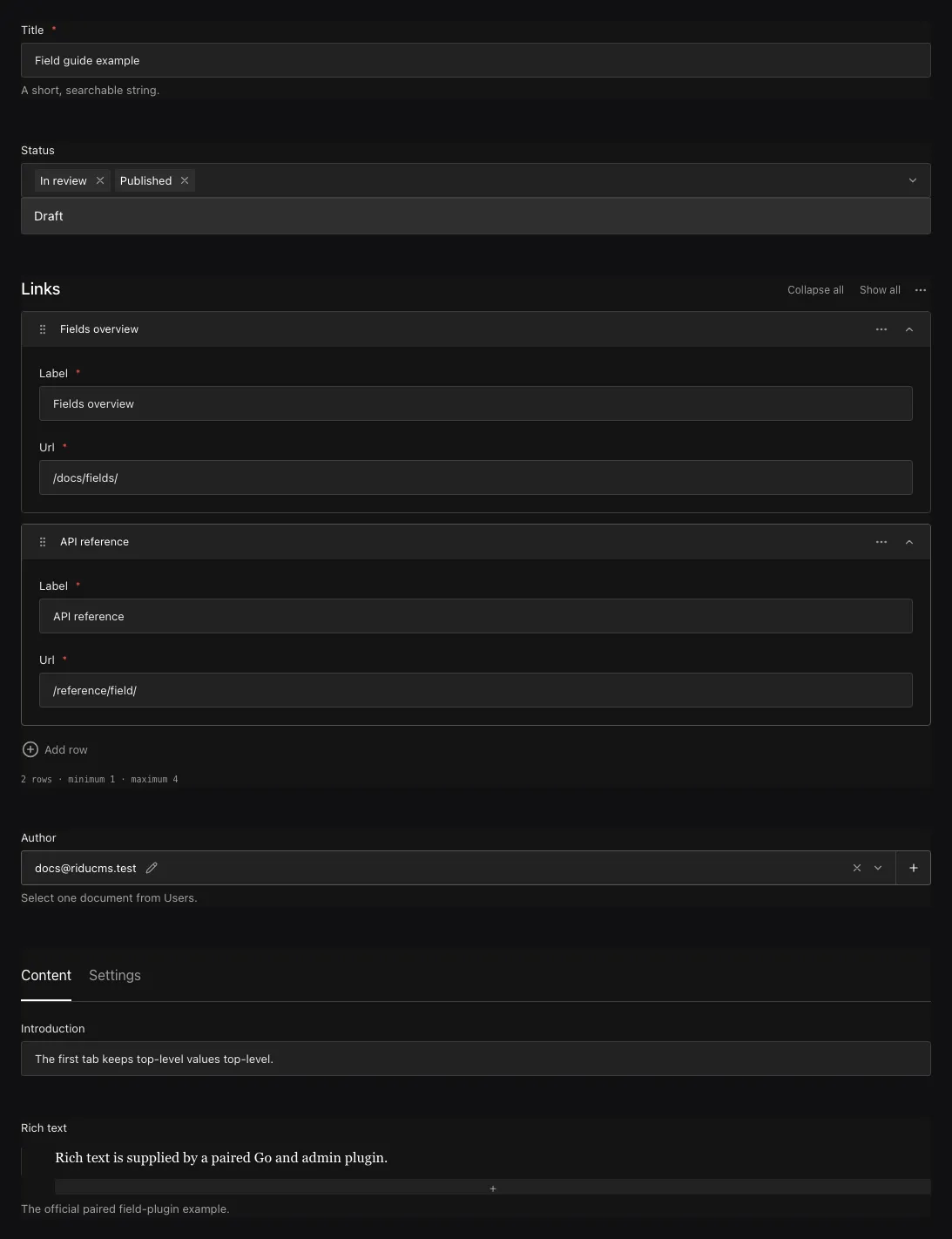
Fields describe the content in a document: a title, a price, a list of links, or a reference to another document. Define them in Go, and Ridu uses that definition to build the admin form, validate saved values, and generate the types your application uses.
Define a field
Start with a field type and a name, then add options. In this example, title is required text
and status is a choice that starts as draft:
package content

import (
  "github.com/riducms/ridu"
  "github.com/riducms/ridu/field"
)

var Posts = ridu.Collection{
  Slug: "posts",
  Fields: field.Fields{
    field.Text("title").Required(),
    field.Select("status", "draft", "published").Default("draft"),
  },
}
Add Posts to your Go config’s Collections list. The API returns properties named title
and status. Use .Label(...) to change a label and .Admin(field.Admin{Description: ...})
to add help text without changing those property names.
Choose field names carefully
Start a field name with a lowercase letter, then use letters, numbers, or underscores. Each name
must be unique inside its collection, group, or row. Ridu reserves id, createdAt, updatedAt,
and deletedAt. Nested fields have paths such as seo.description; an error on the third link’s
label has a path such as links.2.label.
Renaming a field changes its API property and can require a data migration. Use .Label(...)
when you only want to change the text beside its input.
Choose a built-in field
Choose the type that matches your content. Each linked page shows an example and how it appears in the admin.
| Group | Field pages | Value |
|---|---|---|
| Basic fields | Text, Textarea, Email, Code, Date, Number, Checkbox, Select, Radio, Slug | Text, numbers, true/false values, and fixed choices |
| Structured | JSON, Point, Group, Array, Blocks, Tabs | JSON values, objects, repeated rows, and rows with different field layouts |
| Relationship and media | Relationship, Upload | Links to other documents or uploaded files |
| Layout | Row, Collapsible, UI | Organize the form without adding stored properties |
| Computed and plugin | Join, Virtual, Plugin | Computed values or a custom field type |
Text, numbers, and choices
Use Text for a short value and Textarea for several lines. Code adds syntax highlighting; Email checks an email address. Number stores a number, and Checkbox stores true or false. Select and Radio offer fixed choices; Select can also allow several choices. Date supports a date, time, or timestamp. Slug creates a URL-friendly value from another field.
Lists of text or numbers
Use field.TextList("sellingPoints").MaxLength(120) for []string and
field.NumberList("availableSizes").Min(0) for []float64. Their MinRows and MaxRows
constrain item counts; text lengths and numeric bounds apply to each item. Order and duplicates
are preserved. Use Array when rows need child fields, or MultiSelect for fixed choices.
See Text and number lists for empty/null values, callbacks, and queries.
Slugs
field.Text("title").Required(),
field.Slug("slug", "title"),
Slugs are required, unique, indexed, non-localized strings. Generated values follow the source until an author supplies a manual value. Read Slug for ASCII normalization and migration implications.
Add options and behavior
Chain methods to configure a field: field.Number("priority").Label("Priority").Min(0)
adds a label and rejects negative numbers. Each method returns an updated copy, so reusing a
field does not change its original definition. Put your fields in a field.Fields list.
| Configuration | Purpose |
|---|---|
.Label(...), .LabelTranslations(...) |
Labels and translations shown in the admin |
.Required(), .Unique(), .Index() |
Required values, uniqueness, and indexes |
.Default(...), .DefaultFrom(...) |
Fixed or calculated initial values |
.Localized() |
A separate value for each content language |
.Access(field.Access{...}) |
Who can create, read, or change the field |
.Hooks(field.Hooks[T]{...}), .AfterRead(callbacks...) |
Change a value or run code when a document is read or changed |
.Validate(rule) |
Check a value before saving |
.Admin(field.Admin{...}) |
Input components, row labels, visibility, and layout |
Calling .Admin(...), .Hooks(...), or .Access(...) replaces that group of settings. To
adjust a reusable field without losing its existing settings, use .EditAdmin(...),
.AppendHooks(...), or .RestrictAccess(...). Hiding an input does not disable validation
or change who can read or write it.
Custom inputs
Use your own Svelte component when a field needs a different input, a character counter, or
extra information beside the control. For example, this text field uses a component named
app:titleCounter:
field.Text("title").
  Required().
  Admin(field.Admin{
    Editor: field.Component("app:titleCounter"),
  })
The Field components tutorial shows the complete component, where to register it, and how to try it in the admin. It starts with a title that counts characters as you type.
You can customize text, textarea, email, date, code, number, checkbox, text-list, and number-list inputs this way. Your component changes the editing UI; the field’s Go validation and permissions still apply.
More ways to customize fields
- Use Row labels to show a useful summary on an array or block row.
- Use Table cells to change how a saved value appears in a collection list.
- Build a field plugin when you need a new data format, server validation, or an editor for a field that cannot use an application component.
A plugin can provide a renderer selected with field.PluginComponent, or a new field type
selected with field.Plugin. The plugin guide explains the Go and Svelte parts together.
For other admin changes, start with Custom components.
Defaults and validation
Use .Default(...) for a fixed initial value, such as "draft", or .DefaultFrom(callback) to
choose one from request information, such as the content locale. Defaults fill omitted fields
when creating a document and can also fill children of a new object or array row during an update.
They leave supplied values and retained fields alone. Dynamic defaults run on save and do not
prefill unsaved forms. See Set default field values for examples and
the rules for nested and translated content.
Options such as .Required(), .Min(...), and .MaxLength(...) check
values before saving, regardless of whether the change comes from the admin or an API.
Documents saved before a field became required are checked once, by the migration or ridu dev
synchronization that makes it required: it stops while a published or unversioned document has no
value. See Making a field required.
For a rule specific to your application, attach .Validate(yourFunction). The
Custom validation guide shows a complete URL validator, explains
what to return, and walks through testing the result in the admin.
To show server feedback while the author edits, attach .LiveValidate(...) as well.
Live server validation explains when checks run and how to share
a rule between live feedback and save validation.
Show validation messages on child fields
A validator normally puts its message on the field it checks. A rule comparing several children
or rows can point to the child that needs attention with operation.Issue.Target. See
Put a message on a child field for group,
array, block, and translation examples.
Use other field values in a callback
A field validator, hook, or access rule receives a context, usually called ctx.
Use ctx.Siblings to read nearby fields, ctx.Root for top-level fields, and ctx.Prior
for previously saved values. In an array, Siblings and Prior refer to the same row even
when it has moved.
Start with Using other field values, which shows how to prevent a locked product code from changing.
Know which values a callback receives
Validators see the values that would be saved. Hooks can run before input is checked or while a response is being prepared. See Which values does a callback see? for the differences, including how to distinguish omitted input from an explicit null.
Identify the request and user
Use ctx.Operation, ctx.ID, and ctx.Actor for the operation, document, and signed-in user.
See Identify the request and signed-in user
for cancellation and logging details.
Compare translations
During a French update, the current and previously saved values both refer to French. An English fallback is not a previously saved French value. See Work with translations for single-locale and all-locales reads.
Look up a related document
Use ctx.Local.FindByID to check a document already selected in a field. It uses the callback’s
user and transaction and checks read permissions. See
Look up a related document.
Nested fields
Use Group for one known object, Array for ordered rows with the same fields, and Blocks for rows with different layouts. Named Tabs also create an object; unnamed tabs affect only presentation.
field.Group("seo", field.Fields{
  field.Text("title"),
  field.Textarea("description"),
}),
field.Array("links", field.Fields{
  field.Text("label").Required(),
  field.Text("url").Required(),
}).MaxRows(12),
Ridu builds the nested form and generates matching types. Use these fields when you know the properties your content needs; use JSON for data whose structure you cannot define in advance.
Arrange the edit form
Rows, collapsibles, unnamed tabs, and UI fields organize the form without nesting the stored
values. Named tabs and Groups create objects in the saved document. Admin ReadOnly and
Hidden settings control the form; use access rules to protect the data.
field.Row(field.Fields{
  field.Text("firstName").Admin(field.Admin{Columns: 6}),
  field.Text("lastName").Admin(field.Admin{Columns: 6}),
}),
field.Collapsible("advanced", field.Fields{
  field.JSON("providerMetadata"),
}).Admin(field.Admin{InitiallyCollapsed: true}),
The stored paths remain firstName, lastName, and providerMetadata.
Link to other documents
Use Relationship to select one or more documents, such as a post’s category. Use Upload to select a file from a media collection. Ridu checks that the user can read the selected documents. Option filters can further limit the choices.
The API normally returns the selected IDs. Ask for populated results when you need the related documents too. A Join finds documents that point back to this one, such as all posts in a category, without making you maintain a second list of IDs.
See Relationships for filtering, related-document queries, and deletion rules.
Add files and rich text
An Upload field selects a media document. Upload the actual file through the admin or an upload API call, then use that document’s ID in the field.
The official Rich-text plugin provides formatted text, links, images, and content blocks. It includes both Go validation and the Svelte editor.
Return computed values
Use a Virtual field for a value calculated by Go code, such as a display
name assembled from other fields. The field appears in API responses but is not stored and
cannot be set by a create or update request. Its resolver’s return type sets the output type:
string, float64, bool, or store.Value for any JSON value.
Joins and virtual fields run when the response requests them. They are not editable inputs.
Translate field values
Configure your application’s content languages, then add .Localized() to fields that need a
separate value in each language. Put it on a Group, Array, or Blocks field when the whole object
or list should vary by language. This keeps fallback from mixing parts of different translations.
Translating the admin’s labels and descriptions is a separate setting from translating stored content. See Content localization and Admin language.
Reuse fields with their rules
Attach access rules and hooks to a field so they travel with it when you reuse it. In this example, both the primary link and footer link require a signed-in user to update the URL:
func Link(name string) field.GroupField {
  return field.Group(name, field.Fields{
    field.Text("label").Required(),
    field.Text("url").Required().Access(field.Access{
      Update: func(ctx operation.Context) (bool, error) {
        return ctx.Actor.ID != "", nil
      },
    }),
  })
}

primary := Link("primary")
footer := Link("footer").Label("Footer link")
To change one child of a reusable group, use field.EditChild:
func CompactLink(name string) (field.GroupField, error) {
  return field.EditChild(Link(name), "label", field.AsText,
    func(label field.TextField) field.TextField {
      return label.MaxLength(32)
    })
}Text, Code, and Textarea share field.TextField and field.AsText. Select and Radio
share field.SelectField and field.AsSelect. Each constructor retains its schema kind, control,
and validation. A child editor can deliberately replace presentation within its family, such as
returning field.Code(label.Name()); it must preserve the name and pass final schema validation.
Date, Email, lists, and references have separate builders.
field.EditChild keeps the child’s existing settings while applying your change.
field.ReplaceChild replaces the child entirely; field.AppendChild adds a child. These helpers
return an updated group or array and an error if the edit is invalid. See
Customize a reusable group for more examples.
Plugins that need to change several fields can use field.Fields.Edit and field.ChildrenDraft.
For permission checks and code that runs during saves, continue with
Access control and Hooks.
Change fields after saving data
Adding an optional field usually leaves existing data usable. Renaming or removing a field, changing its type, or making it required may need a data migration.
Run ridu migrate create, review the proposed changes, and test them against an isolated copy of
your data before applying them. Development database sync does not replace production migrations.
See Migrations for the workflow.
Common content examples
| Need | Prefer |
|---|---|
| Short or multi-line plain text | Text or Textarea |
| Formatted portable document | Official Rich text plugin |
| One known object / repeated one-shape rows / mixed rows | Group / Array / Blocks |
| Fixed values / managed records | Select / Relationship |
| Media reference | Upload to an upload-enabled collection |
| Form layout without nesting API values | Row, Collapsible, unnamed Tabs, Admin.Columns |
| Derived response value | Virtual field with a Go function |
| Reusable new value kind | Plugin with Go validation and an admin component |
Choose the simplest field that fits your content. See the individual field pages for examples
and the field API reference for every option.