
Collapsible field
Put optional or advanced fields in a section that authors can expand and collapse.
Use field.Collapsible to keep optional or advanced controls available without making the default
editor overwhelming. It changes presentation only; children stay at their current document path.
In the admin
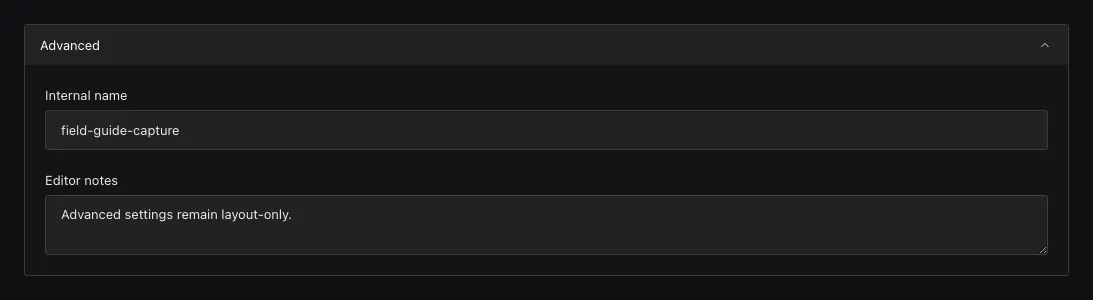
Collapsing changes only presentation; child values remain at their existing document paths.
Add a collapsible section
field.Collapsible("advancedSettings", field.Fields{
  field.Text("canonicalURL").Label("Canonical URL"),
  field.JSON("providerMetadata"),
}).Admin(field.Admin{InitiallyCollapsed: true})
Admin.InitiallyCollapsed controls whether the section starts collapsed. The document has root
canonicalURL and providerMetadata properties; there is no advancedSettings object.
Child fields keep their own settings, validation, and access rules. Opening or closing the section does not change their values.
Configuration
| Constructor or method | What it controls |
|---|---|
field.Collapsible(name, fields) |
Groups child controls in an expandable layout without adding a stored object. |
.Admin(field.Admin{InitiallyCollapsed: ...}) |
Chooses whether the section starts closed. |
.Label(...) / .LabelTranslations(...) |
Sets the section heading. |
| Child field methods | Keep each child’s requiredness, access, validation, hooks, and storage at its existing path. |
Collapsible is a layout field. It has no requiredness, localization, validator, hook, access rule, or persisted value of its own.
When to use it
Collapsibles work well for settings that authors change less often. Keep frequently used fields visible, and make sure authors can find required fields when a validation error occurs.
Use Group when children should be stored in a nested object, and Tabs when a long form needs peer sections rather than optional detail.
Common mistakes
- Collapsed is not hidden. Values are still read, submitted, validated, and authorized.
- Moving existing fields into a Collapsible is presentation-only; changing their names or nesting is a migration.
- Keep the label meaningful to screen-reader and keyboard users; do not rely on an icon alone.
See field.Collapsible and Admin field layout.